Acceptable use policy review checklist for B2B SaaS teams
Your team just signed up for a new SaaS tool. The vendor's website looks polished, the free trial went smoothly, and now you need to review their Acceptable Use Policy (AUP) before rolling it out company-wide. But where do you start? AUPs are often buried in vendor documentation, written in legal language, and loaded with restrictions that could blindside your team mid-project.

Photo by Mikhail Nilov from Pexels
Your team just signed up for a new SaaS tool. The vendor's website looks polished, the free trial went smoothly, and now you need to review their Acceptable Use Policy (AUP) before rolling it out company-wide. But where do you start? AUPs are often buried in vendor documentation, written in legal language, and loaded with restrictions that could blindside your team mid-project.
An acceptable use policy is a set of rules that defines what customers can and cannot do with a service. Violate it, and your account can be suspended, sometimes without warning. This guide gives you a practical checklist to spot hidden traps, enforce reasonable boundaries, and protect your organization before problems arise.
TL;DR
- An AUP sets the rules for how you can use a vendor's service; breaking them risks account suspension or data loss.
- Search for AUPs on vendor websites, privacy policy pages, and terms of service links, they're often scattered across multiple places.
- Use the checklist below to scan for high-risk clauses like forced arbitration, AI training on your data, and vague definitions of "prohibited use."
- Terms Doctor's A-F grading system highlights AUP red flags in seconds, so you don't have to read dense legal text manually.
- Document your review and share findings with stakeholders before final sign-off.
Why acceptable use policies matter for B2B teams

An AUP is more than fine print, it's a legal contract between your organization and the vendor. Acceptable use policies define which actions trigger account suspension, data deletion, or legal action. Many teams skip this step and discover problems only after a vendor locks them out mid-campaign or deletes their data without explanation.
Common AUP violations include:
- Reselling or redistributing the service without permission
- Using the platform to train AI models (including competitor AI systems)
- Scraping data or automating access beyond the vendor's stated limits
- Reverse-engineering the service or circumventing security controls
- Using the service for illegal activities, harassment, or spam
- Sharing login credentials across teams or departments without proper licensing
- Storing sensitive data (payment cards, government IDs) in violation of the vendor's security tier
How to find an acceptable use policy
Vendors often hide AUPs in three places:
- On the main website – Check the footer links for "Terms of Service," "Legal," or "Acceptable Use."
- In the privacy policy – Some vendors embed AUP language inside their privacy document.
- In account settings – After signing up, log into the dashboard and search for a "Legal" or "Compliance" section.
Key takeaway: Always review an AUP before your team starts using a vendor's service; finding surprises after launch is costly and disruptive.
The B2B SaaS acceptable use policy review checklist

Use this checklist during your review. For each item, decide whether the vendor's AUP rule is acceptable or a dealbreaker for your team.
Acceptable Use Policy Review Checklist
Your progress is saved automatically in your browser.
Step-by-step review process
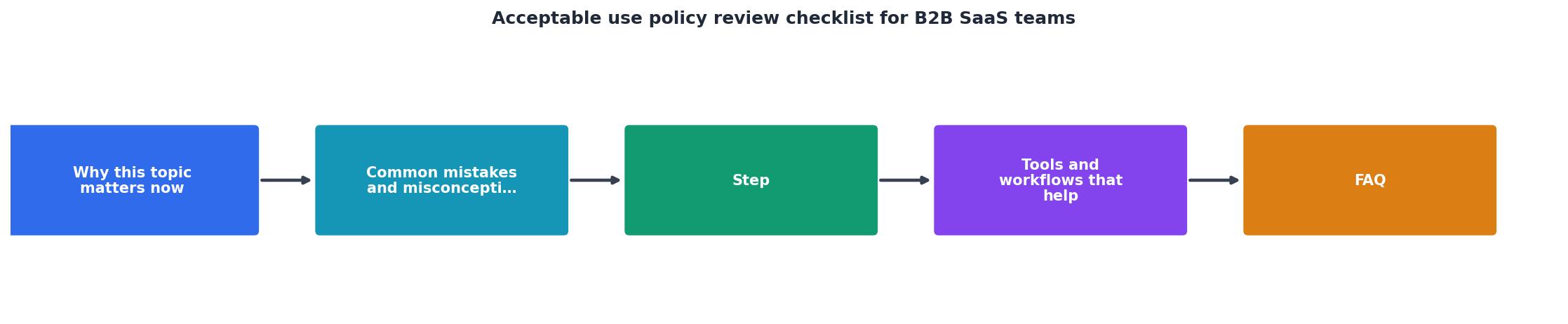
Follow this workflow to review an AUP systematically:
- Collect the document – Request the AUP, ToS, and privacy policy from the vendor. Ask for a plain-text or PDF version (easier to search).
- Search for red-flag keywords – Use Ctrl+F (Cmd+F on Mac) to search for: "terminate," "suspend," "delete," "arbitration," "liability," "indemnify," "AI training," "auto-renew," and "sole discretion." Each hit deserves a closer read.
- Cross-reference with your use case – Does the vendor prohibit anything your team actually plans to do? If yes, ask the vendor if they'll grant an exception in writing.
- Check for change history – Scroll to the bottom of the AUP and look for a changelog or version date. If the document was last updated three years ago, the vendor may not actively maintain it.
- Document your findings – Use a shared spreadsheet or document to record which clauses passed or failed your checklist. Include the clause text, its location in the AUP, and your team's decision (accept, negotiate, or reject).
- Present to stakeholders – Share your summary with your manager, legal team (if available), and budget owner. Ask them to sign off before the vendor is locked into a contract.
- Get it in writing – If you negotiate any exceptions or clarifications with the vendor, insist they send a signed amendment to the AUP. Email promises don't hold up later.
Red flags to watch for

These AUP clauses often hide nasty surprises:
- "Sole discretion" – Vendor can suspend your account, delete your data, or raise prices with no notice or explanation.
- "AI training" or "machine learning" – Vendor reserves the right to feed your data into their AI models or sell training rights to competitors.
- Forced arbitration – You can't sue the vendor; you must submit to private arbitration (expensive and unfair to you).
- Broad indemnification – You agree to pay the vendor's legal fees if someone sues them, even if it's their fault.
- Auto-renewal without explicit opt-in – Subscription automatically renews, and you can't easily cancel.
- Vague "prohibited use" definitions – "You may not use the service in ways that harm the vendor's business" is too vague to actually follow.
- Data ownership ambiguity – Vendor claims rights to your content or customer data after you upload it.
- No refund policy – All sales are final, no matter what happens.
"The TrustCloud AUP template is structured to cover the critical areas auditors and regulators expect while remaining practical and easy to understand for end‑users.">, Acceptable use policy template guide for 2026: Download for free
How Terms Doctor helps
Manually reading and parsing 20-page legal documents is slow and error-prone. Terms Doctor runs 101 consumer-protection checks on any vendor's ToS and AUP in seconds, highlighting the exact clauses that matter most:
- Flags forced arbitration and AI training on your data
- Grades the entire terms page A–F so you can compare vendors at a glance
- Tracks when vendors change their policies, so you catch surprise updates
- Exports a report you can share with your team and stakeholders
FAQ
Frequently Asked Questions
Document your review and move forward
Reviewing an AUP takes 30 minutes with a good checklist and 2–3 hours if you're reading the whole thing carefully. The time investment saves you from account lockouts, surprise data deletions, and vendor disputes down the road.
Before your team signs on the dotted line, make sure you and your stakeholders have reviewed the AUP, documented your findings, and agreed that the vendor's rules work for your use case. Use the checklist above, lean on Terms Doctor to spot the high-risk clauses automatically, and ask the vendor to clarify anything that feels ambiguous.
Once you've crossed the finish line, save a copy of the AUP in your records and set a calendar reminder to re-review it annually. SaaS vendors change their terms frequently, and staying alert keeps your team safe.
Additional Resources
- Acceptable use policy template guide for 2026 - Learn how to fill in a clear acceptable use policy template with a ready-to-use template, practical examples, and simple steps to protect ...
- Acceptable Use Policy (AUP): Ultimate Guide + Free ... - Learn what an acceptable use policy includes, get a free AUP template, and see how it maps to SOC 2, ISO 27001, HIPAA, and GDPR.
- Acceptable Use Policy Template - Policies are important components of all security decisions. We've created templates to get you started. Download our acceptable use policy template now.
Ready to Read Terms Before You Sign?
Terms Doctor finds terms of service on any site and grades them A-F in seconds.
Get Started“Terms Doctor flagged forced arbitration and AI training clauses in seconds. I finally know what I am agreeing to.”
Privacy-conscious shopper