Export Terms Doctor Reports for Legal Review
You just found a red flag buried in a SaaS vendor's terms of service, forced arbitration, a broad AI-training clause, or an auto-renewal trap that could lock yo


Photo by RDNE Stock project from Pexels
You just found a red flag buried in a SaaS vendor's terms of service, forced arbitration, a broad AI-training clause, or an auto-renewal trap that could lock you in for another year. Now you need to share that finding with a lawyer, a compliance team, or even your own future self. The fastest way to do that is to export the Terms Doctor report into a clean, portable file that anyone can open, search, and annotate without installing the extension themselves.
TL;DR
- Terms Doctor lets you export its full A-F graded report as a shareable PDF or structured JSON file directly from the extension popup.
- Exported reports preserve every flagged clause, the overall grade, and plain-language explanations, perfect for forwarding to legal counsel.
- A consistent file-naming convention keeps your archive searchable as you review dozens of vendors over time.
- Exported data is generated locally in your browser; no account or cloud upload is required.
- Automated reports are a starting point, not a substitute for professional legal advice.
Why Exporting Matters More Than You Think

Reading a terms-of-service page in your browser is one thing. Proving to someone else what you found, and when you found it, is another challenge entirely. Terms pages change without notice. A clause you spotted on Monday might be reworded by Friday, and without a saved snapshot you have no evidence of the original language.
Exporting a Terms Doctor report solves three problems at once:
- Evidence preservation, the exported file captures the exact text of every flagged clause at the moment you ran the scan, creating a timestamped record.
- Collaboration, a PDF or JSON file can be emailed, uploaded to a shared drive, or attached to a legal-review ticket without requiring the recipient to install anything.
- Comparison over time, when you re-scan the same site weeks later, you can place two exports side by side to see what changed, which clauses were added, and whether previously flagged issues were resolved.
These benefits matter whether you are evaluating a single tool for personal use or auditing a stack of twenty SaaS vendors for your team. The export feature turns a quick browser check into a durable, referenceable artifact.
Key takeaway: An exported Terms Doctor report transforms a fleeting browser scan into a permanent, shareable legal artifact.
How the Export Works: Step-by-Step
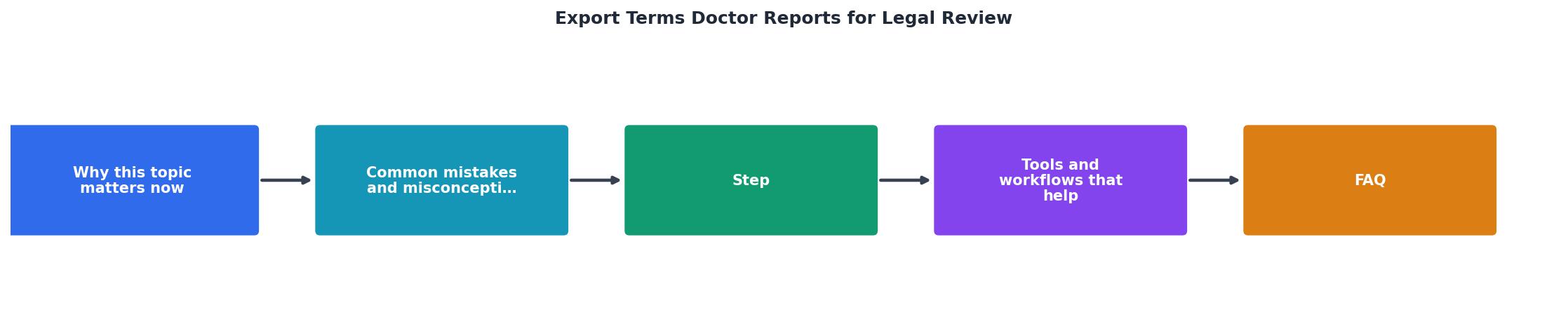
Follow these steps to generate and save a report from any website Terms Doctor has scanned.
Step 1, Run the Scan
Navigate to the website whose terms you want to review. Click the Terms Doctor icon in your browser toolbar. The extension automatically locates the terms-of-service page (or privacy policy) and runs all 101 consumer-protection checks. Within seconds you will see the A-F grade and a list of flagged clauses.
Step 2, Open the Full Report View
Click "View Full Report" in the extension popup. This opens a detailed breakdown organized by category: data rights, arbitration, liability limits, auto-renewal, intellectual-property claims, AI-data usage, and more. Each flagged item includes the exact quote from the terms page and a plain-language explanation of why it matters.
Step 3, Choose Your Export Format
At the top of the full report view you will find the Export button. Clicking it presents two options:
- PDF, a formatted, print-ready document with the grade, all flagged clauses, and explanations. Ideal for emailing to a lawyer or attaching to a procurement ticket.
- JSON, a structured data file that developers or compliance tools can parse programmatically. Useful if you feed reports into a spreadsheet, a Notion database, or an internal audit dashboard.
Step 4, Name and Save the File
Your browser's standard "Save As" dialog appears. Use a consistent naming convention (see the checklist below) so you can find the file months later. The file is generated entirely in your browser, nothing is uploaded to a server.
Step 5, Share or Archive
Attach the file to an email, drop it into a shared Google Drive folder, or commit it to a version-controlled repository. The recipient does not need Terms Doctor installed to read the PDF or parse the JSON.
"A standardized naming convention is your best defense against disorganization.">, Ares
File-Naming Convention Checklist
Keeping exported reports organized is critical once you start reviewing multiple vendors. Use the checklist below every time you save a new export.
Report File-Naming Checklist
Your progress is saved automatically in your browser.
A filename following this convention looks like: 2026-08-31_acme-cloud_tos_grade-D.pdf. Six months from now, a single glance at the folder tells you which vendor was reviewed, when, and how it scored.
What the Exported Report Contains

Every exported report includes the following sections, regardless of format:
- Header, website URL, scan date and time, Terms Doctor version, and the overall A-F grade.
- Grade Summary, a one-paragraph plain-language explanation of what the grade means for you as a consumer or buyer.
- Flagged Clauses, each clause that triggered one of the 101 checks, grouped by category. For every flag you get:
- The exact quoted text from the terms page.
- The check name (e.g., "Forced Arbitration," "AI Training on User Data," "Unilateral Amendment").
- A severity indicator (high, medium, or low risk).
- A plain-language note explaining the practical impact.
- Passed Checks, a summary count of checks the terms page passed, so you can see the full picture, not just the problems.
- Metadata (JSON only), machine-readable fields like
scannedUrl,scanTimestamp,gradeScore, and an array offlagsobjects, making it straightforward to import into databases or dashboards.
Practical Use Cases

Evaluating a New SaaS Tool Before Purchase
Before committing to an annual plan, scan the vendor's terms page with Terms Doctor. Export the report as a PDF and attach it to your internal procurement request. Decision-makers who never install browser extensions can still see the grade and every red flag in a familiar document format.
Freelancer Reviewing a Client Platform
A client asks you to sign up for their project-management tool. You scan the terms, discover a clause granting the platform a perpetual license to any content you upload, and export the report. You send the PDF to the client with a note: "Clause 7.3 may affect ownership of deliverables I upload. Can we discuss alternatives?" That single export turns a vague concern into a concrete, quotable finding.
Tracking Terms Changes Over Time
Export a report today, then set a calendar reminder to re-scan in 90 days. When you export the second report, open both files and compare flagged clauses. New flags that were not present in the first report indicate terms changes that may affect your rights. This lightweight change-tracking workflow costs nothing and takes minutes.
Building a Vendor Risk Register
If you evaluate multiple tools each quarter, save every JSON export into a single folder. A simple script, or even a spreadsheet import, can pull the grade and flag count from each file, giving you a sortable vendor-risk table without any manual data entry.
Tips for Getting the Most Out of Exports
- Export before you sign, always generate the report before agreeing to terms, so you have a pre-acceptance snapshot.
- Pair PDF with JSON, send the PDF to humans and keep the JSON for your own records or automation.
- Add context in the filename, if you are comparing two competing vendors, prefix both files with the same project code so they sort together.
- Re-export after major updates, if a vendor emails you about a terms update, re-scan and export immediately. Compare the new export with your archived version.
- Remember: not legal advice, Terms Doctor's 101 checks are thorough, but automated analysis is a starting point. For high-stakes contracts, share the export with a qualified attorney who can interpret the findings in your specific legal context.
FAQ
Frequently Asked Questions
Try It Yourself
If you have not installed Terms Doctor yet, head to the homepage and grab the free extension for Chrome, Edge, Brave, Opera, or Vivaldi. Run your first scan, export the report, and see how much easier it is to discuss terms-of-service concerns when you have a clean, shareable document in hand. It takes less than a minute, and it might save you from a clause you would have missed entirely.
Additional Resources
- Medical Record Review for Attorneys: Essential Guide - A concise, practical guide to medical record review for attorneys - learn intake, analysis, summarization, and smart tools to build stronger ...
- Medical Record Review for Attorneys: Best Practices - We'll provide a step-by-step guide to reviewing complex medical records documents, explain ways to use complex medical records once they've been ...
- Medical Records for Personal Injury Cases: A Lawyer's Guide - Medical records for personal injury cases: what to request, how to avoid delays, and when to outsource retrieval.
Ready to Read Terms Before You Sign?
Terms Doctor finds terms of service on any site and grades them A-F in seconds.
Get Started“Terms Doctor flagged forced arbitration and AI training clauses in seconds. I finally know what I am agreeing to.”
Privacy-conscious shopper